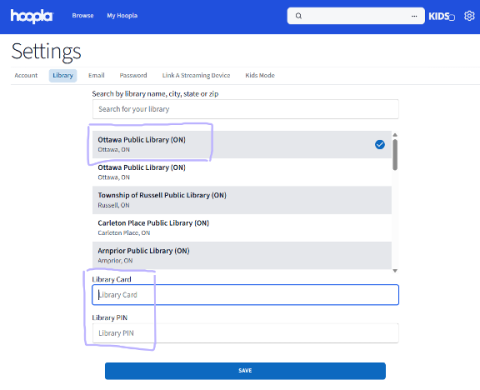
If you have replaced your card since you first registered with Hoopla, you may need to update your card number in Hoopla.
- Sign in to your Hoopla account (with your email address and password) through the Hoopla link under the OPL online Resources portal or go directly to hoopladigital.com.
- Click on the gear (⚙️) icon in the top right corner to open Settings.
- Click on the "Library" tab.
- Do not enter spaces in the number field. Enter your new library card number in the field where your old number displays.
- In the PIN field, enter your PIN
- Click "Save". To save your changes. A green confirmation message should appear.
Image